Texturing
Textures are chosen by name from the textures your game provides. What names mean (alpha-masked, sky, emissive) is in Textures.
Apply a texture
- Select brushes, or faces in face mode (
Q). - Press
Tto open the texture browser. - Click a texture. It becomes the active texture and goes on everything selected.
The active texture shows at the top of the right panel; click it to open the browser. New brushes take it. Cmd T puts it on the selection again without opening the browser.
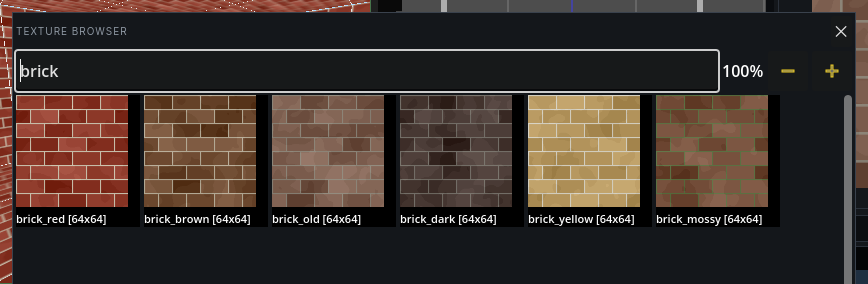
Texture browser
| Do | How |
|---|---|
| Filter | type in the field; words separated by spaces match in order, anywhere in the name |
| Bigger / smaller pictures | + and − buttons, or Ctrl and the mouse wheel |
| Close | Esc, or the ✕ button |
Pictures are drawn to scale: a texture twice the size in the world is twice the size in the browser. Each tile shows the name and pixel size.
Adjust a face's texture
- Select the faces to adjust in face mode (
Q). With brushes selected instead, every face of them is adjusted. - Press
F. The Adjust Selected Faces panel opens at the bottom right. - Adjust, any of these ways:
- Drag the texture in the panel's preview. The face stays still and the texture moves under it. Drag the handles to turn and stretch it.
- Type Offset, Scale and Angle.
- In a view, press
G,RorSand move the mouse to offset, rotate or scale. Arrow keys nudge by one grid step. - Press
Enter, click in a view, or click Apply.Escor Cancel puts it back.
The whole session is one undo step.
In the preview, drag with the right mouse button to pan and use the wheel to zoom. Fit re-centres the view. Reset UV puts the texture square on the face again: no offset, rotation or scale. Change texture opens the browser for the selected faces.
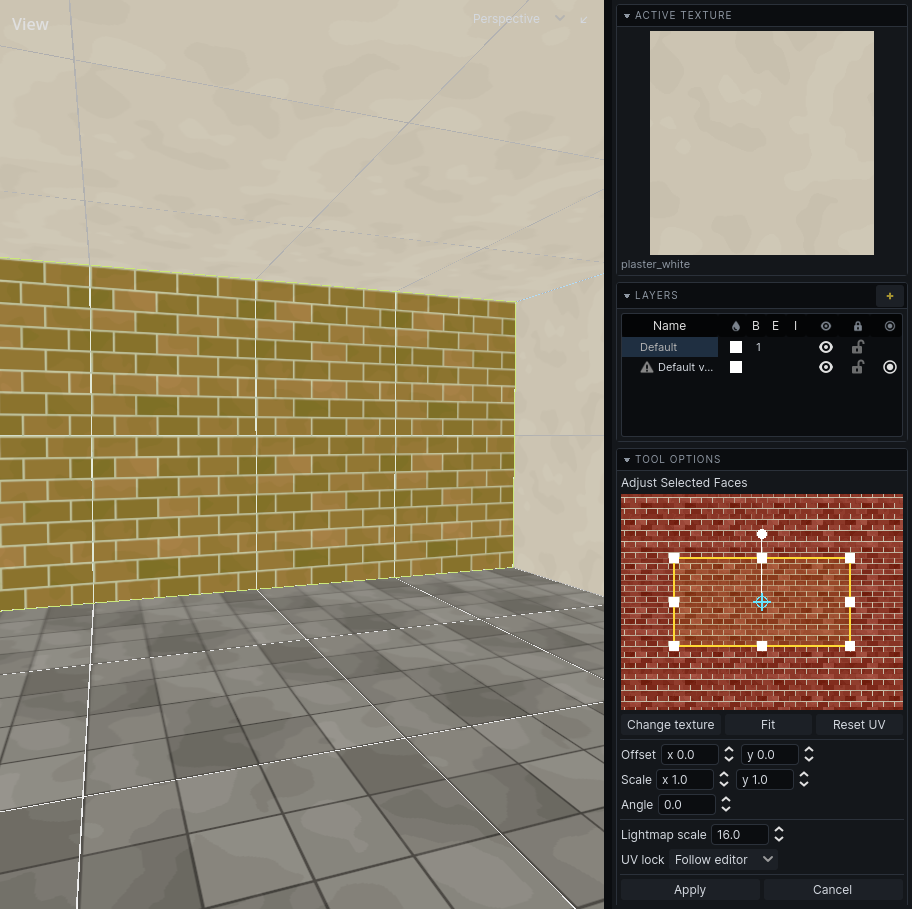
The panel also sets the face's Lightmap scale: how coarse its baked light is. See Baking.
UV lock
With UV Lock on (toolbar, or Edit → Lock Texture to Geometry), a texture travels with its face when you move, rotate or reshape the brush. With it off, the texture stays put in the world and the face slides across it.
A face can overrule the editor. In the face panel, set UV lock to Locked or Unlocked; Follow editor goes back to the toolbar setting.
While the face tool is running, faces with their own setting are marked: blue for locked, orange for unlocked.
Copy one face's texture to others
- Tap
Qfor face mode and click the face that looks right. - Press
CmdShiftCto pick up its texture and UVs. - Hold
Shiftand click each face to paint it. Or select faces and pressCmdShiftV. - Selection → Drop Held Face UVs when done, so a click is a plain click again.
Each paint is one undo step. The texture comes along with the UVs; untick Selection → Painting UVs Carries the Texture to paint UVs alone.
Faces that look into the void
A see-through (alpha-masked) texture on a room's wall shows the rock behind it: the outside of the world, or nothing at all. The 3D view draws such walls red. Give the wall an opaque texture, or carve a room behind it so the wall becomes an opening. O hides these marks with the other warnings.